How to Make Wall Art From Your Photos With AI and ChatGPT
AI can save you most of the fiddly work of making wall art: choosing a material, sizing it, laying out a collage. What it can’t do is decide which memory belongs on your wall. The best results come from using it as a fast assistant, with you making the choices that matter.
This guide explains the two ways to make wall art with AI, what to ask for, and where to step in yourself.
Two Ways AI Can Help
People mean different things by “AI wall art”, and the difference matters.
Approach | What it does | Best for |
|---|---|---|
AI that designs with your photos | Arranges your own pictures and words into a layout, ready to print | Family photos, trips, weddings and gifts |
AI that generates a new picture | Creates an image from a description, or restyles a photo | Illustrations and abstract art |
Photo9 does the first. You upload your own photos, and the AI builds the design around them. If you want an illustration from an image generator such as ChatGPT, you can download it and use it in Photo9 like any other picture, but see the note on image size below.
Where You Can Chat With Photo9
In the Photo9 chat
Open the chat on the site and say what you want, for example “Make me a canvas of my photo” or “Create a poster”. It can help you compare materials, look up sizes and prices for your country, and create the product. Once you’re in the editor, you can keep using plain words to change the design.
In ChatGPT
If you already use ChatGPT, you can make your wall art right there. Open Photo9 in ChatGPT and ask for what you want, for example “Make a canvas from my photos”. A card opens in the chat, where you pick your photos from your device and press the button to create it, and Photo9 makes the design. Photos you’ve already attached to the chat can’t be used, so add them through the card.
You can then ask for another material, size, frame colour or layout, or change the words. You can also ask to see ready-made looks, such as “Show me travel looks for my canvas”. Photo9 shows your canvas in each one, and the look you choose takes your photos and keeps any words you’ve written. When you’re happy, the card takes you to your browser, where you confirm with a six-digit code. Anything else you’d like to change, you can do in the editor there, and that’s also where you order. Read how Photo9 works in ChatGPT.
If you’ve used it for a photo book, this will be familiar. This guide to making a photo book with AI and ChatGPT walks through a similar process.
Step 1: Ask for Help Choosing the Material
If you’re not sure what you want, start by describing the wall, not the product. Questions that get useful answers:
“Help me choose between canvas, forex and poster for a bright living room.”
“Which canvas size suits a large wall?”
“Is canvas good for a photo collage?”
“Which poster size fits an A2 frame?”
Here’s the short version of what you’ll hear:
Material | The look | Good for |
|---|---|---|
Canvas | Warm and textured, with wrapped edges | Living rooms, hallways and gifts |
Forex | Crisp and flat, on a light, rigid board | Offices, modern rooms and photography |
Poster | Classic paper, the widest range of sizes | Bedrooms and gallery walls, in your own frame |
Framed canvas | Canvas in a floating wood frame | A single gallery-style piece |
Framed poster | Paper behind plexiglass, in a wooden frame | Ready-to-hang prints and gallery walls |
Step 2: Choose the Photos Yourself
This is the step to keep for yourself. The Photo9 assistant doesn’t look at the content of your pictures and judge which is the most meaningful, and it would be guessing if it did. Pick the photo you’d miss if it were gone, then check two practical things:
Is it sharp at full size? Zoom in on a face. Softness you can see now will show even more on a wall.
Is it an original? Screenshots and pictures saved from a chat are often small copies.
For a large print, the editor warns you if a photo is too small for its printed size.
If you’re considering a poster, our guide to poster prints from your photos covers sizes, paper and framing.
Step 3: Describe the Design
Once your photos are uploaded, tell the assistant what you’d like to change. The clearer the request, the better the result. Vague requests get a guess, while specific ones get what you meant.
Instead of | Try |
|---|---|
“Make it nicer” | “Use one big photo with no gaps” |
“Add some text” | “Add ’Our Little Tribe, est. 2018’ under the photo” |
“Change the colours” | “Make the background a warm off-white” |
“Fix the photo” | “This photo is too dark” |
“More photos” | “Add another photo to the collage” |
Other things that work well:
“Show me other layouts”
“Show me some looks for my poster”
“Use the gallery wall layout”
“Add a white border”
“Make this photo black and white”
“Put a Christmas look on it”
You can also undo a change, and everything the assistant does can be adjusted by hand in the editor. You aren’t locked in.
Step 4: Write the Words Yourself
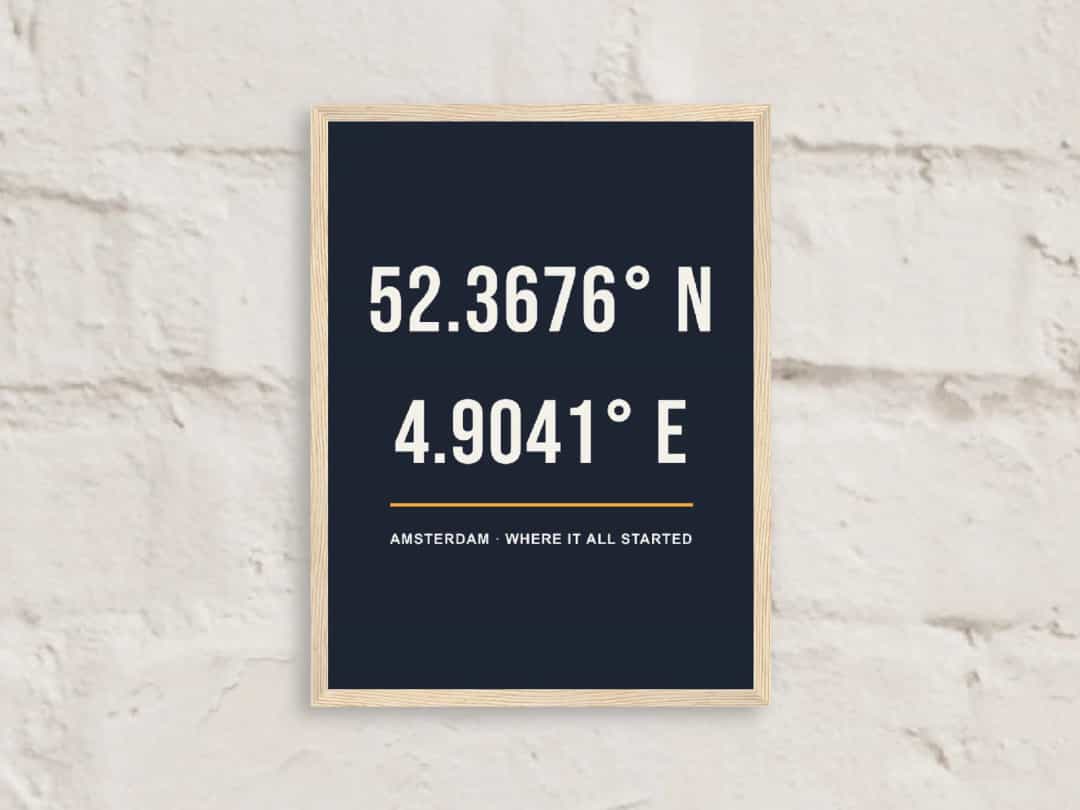
Because the assistant can’t see your photos, any caption it writes will be generic unless you give it the details. Ask for help with wording, but supply the facts:
Weak: “Write something for our wedding canvas.”
Better: “We got married at Lake Como on 14 June 2026. Give me five short lines for a canvas, no more than six words each.”
Then choose one, and read it aloud. You can also write your own lines in a general chat and paste them in. Always check names and dates yourself, as AI tools can get them wrong with complete confidence.
Using an AI-Generated Image
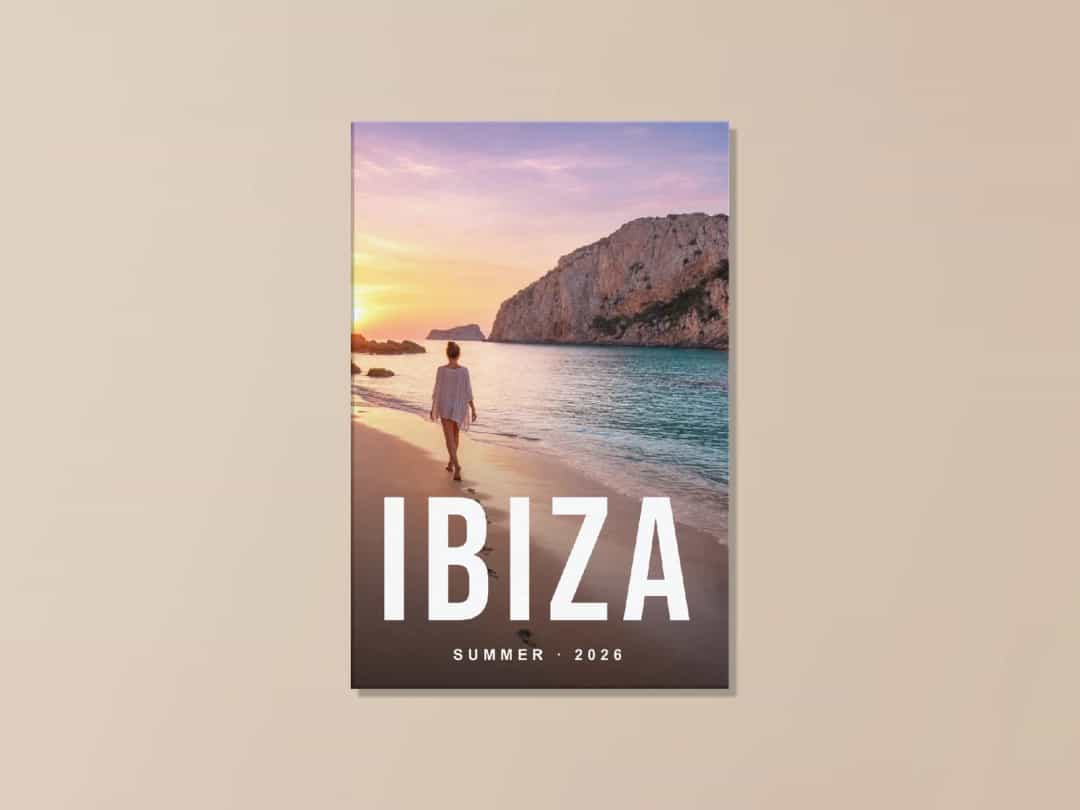
If you’ve created an image with ChatGPT or another generator, keep three things in mind before printing it:
Size: generated images are often only 1,000 to 1,500 pixels wide. That’s fine for a small print, but it may look soft on a large canvas. Use the warning in the editor as your guide.
Faces and details: look closely at hands, faces and any lettering. Mistakes are easy to miss on a phone and hard to miss on a wall.
Rights: don’t ask for images in the style of a named living artist or with a brand’s logo, and check the rules of the tool you used.
Photo9 also has ready-made looks and travel designs, such as illustrated destinations, which can be quicker than generating your own.
Step 5: Check It in 3D, Then Order
AI layouts can be very good, but a person should still have the last word. Before ordering:
Preview it in 3D to see the edges of a canvas or the frame around a print.
Check the crop near faces and anything close to the edge.
Check the safe areas: the wrap on a canvas and the frame’s lip on a framed poster can hide part of the design.
Read every word.
When you’re happy, you can say “Add it to my cart” or do it yourself. For more ideas on where to hang the result, see these personalised photo wall art ideas and this guide on how to turn pictures into wall art.
Make Yours
Bring one good photo and one sentence about what you want. The AI handles the layout, and you stay in charge of everything else. Start your wall art with Photo9 in your browser, with no app to install.
FAQ
Can ChatGPT make wall art?
Yes, with Photo9 in ChatGPT. Ask for a canvas, poster or framed print, add your photos in the card in the chat, and Photo9 makes the design there. You then order it in your browser, and it’s printed and delivered. On its own, ChatGPT can generate images and help with ideas and wording, but it can’t print them.
How do I make wall art with AI from my own photos?
Upload your photos to Photo9 and describe what you want in plain words. The AI lays out the design, and you can change it by asking or by editing it yourself. Check the 3D preview before you order.
Does Photo9 create images with AI?
For wall art, Photo9’s AI designs with your own photos and words. If you’d like an AI-generated image on your wall, you can make it elsewhere and upload it, as long as it’s large enough for the print size.
What should I ask for when making custom wall art with chat?
Be specific about the layout, words and colours. “Use one big photo with no gaps” works better than “make it nicer”. You can also ask for other layouts or ready-made looks.
Can the AI write text for my wall art?
Yes, but it can’t see what’s in your photos, so give it the facts: names, places, dates and the mood you want. Check the wording yourself before you order.