How to Make a Photo Calendar With AI and ChatGPT
A photo calendar involves a lot of small, repetitive jobs: thirteen photos to place, a year of dates to enter, twelve grids to keep consistent. That’s what makes it a good job for AI. You can describe the whole thing in a sentence or two, and then spend your time on the part only you can do, which is choosing the photos and checking the dates.
This guide covers how to make a calendar with AI in Photo9, including prompts you can copy, and how ChatGPT fits in.
Where to Start: Photo9 Chat or ChatGPT?
In the Photo9 chat, say what you want, such as “Make me a calendar from my photos”. You can also ask questions first, for example “Which sizes can I choose?” or “Can my calendar start in July?”. It looks up the formats and prices for your country and creates the calendar for you.
In ChatGPT, you can make the calendar right in the chat. Open Photo9 in ChatGPT and ask for a calendar. A card opens where you pick your photos from your device and press the button to create it. Photos you’ve already attached to the chat can’t be used, so add them through the card. You can then ask for another format, year, first month, holidays or page style, or add your personal dates. You can also ask for a ready-made look, such as “Show me some looks for my calendar”. Photo9 shows your calendar in each one, and the look you choose sets the page style, paper and colours, while your photos, texts and dates stay.
When you’re happy, the card takes you to your browser, where you confirm with a six-digit code. Sorting photos by month, moving a photo and ordering all happen there. See how Photo9 works in ChatGPT.
ChatGPT on its own is also useful for preparing. It can help you make a list of family birthdays, plan a theme for each month, or draft short captions, which you can then paste across.
If you’d rather do it by hand, the photo calendar page has the same options. The AI is simply a faster way to reach them.
If you prefer to build it without AI, follow our step-by-step guide to making a photo calendar online.
Step 1: Tell It the Basics in One Message
You’ll get a better first draft if you give the important details together. Try something like this:
“Make a large portrait calendar for 2027 starting in January, for my parents in Spain, with one photo a month and Spanish holidays.”
The details that help the most are:
Format: portrait, large portrait, landscape, square or slim planner
Year and first month: “Start the calendar in September 2027” works just as well
Who it’s for: this tells you which country’s holidays and which language to use
Photos per month: one large photo, or a small collage
A calendar’s month and day names follow the language you design in, so if it’s a gift for someone abroad, design it in their language.
Step 2: Upload Your Photos, Then Sort Them by Month
Upload your photos, and the AI places them on the cover and the months. Then ask:
“Put the photos in the right months.”
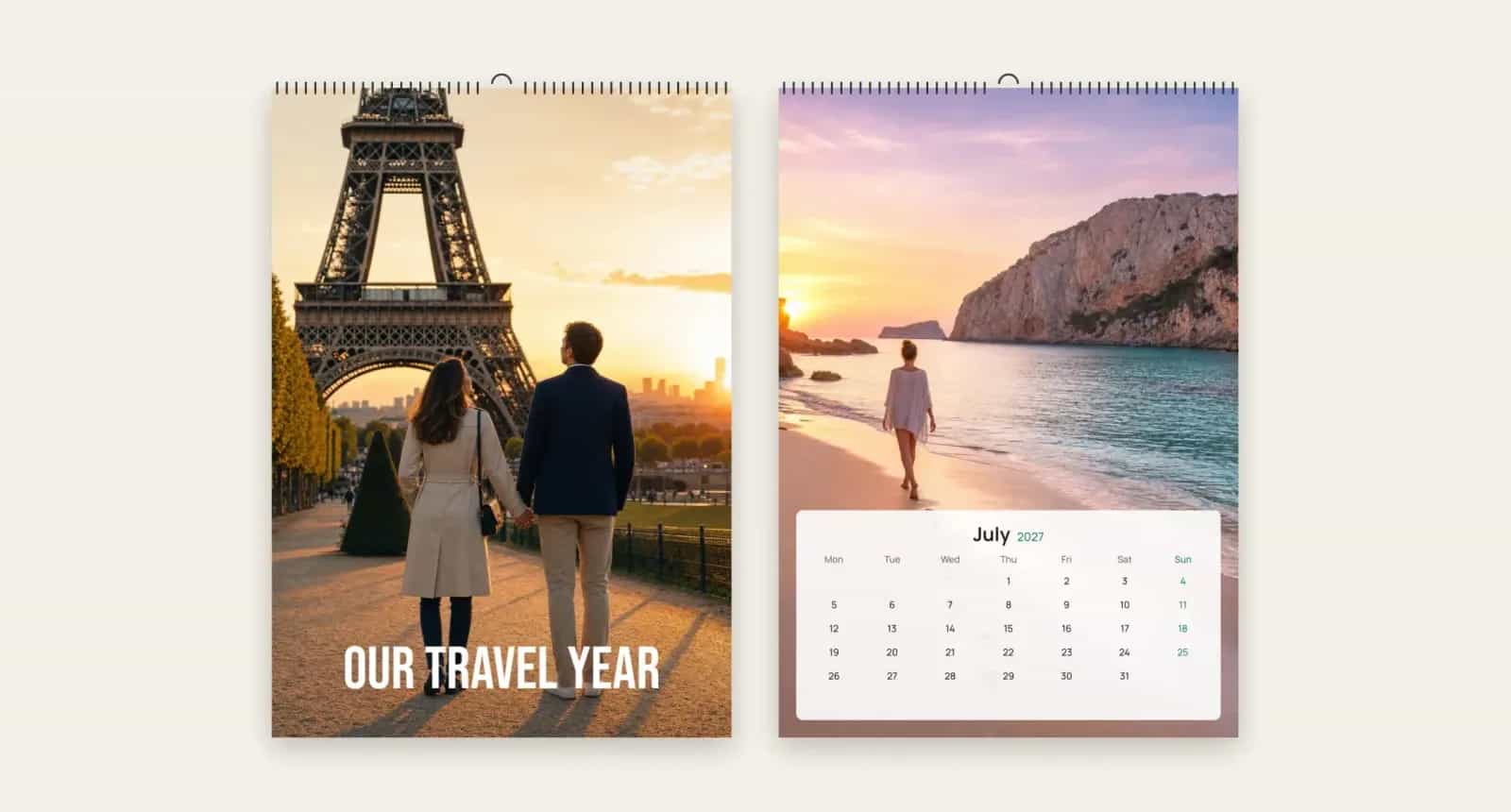
This uses the date each photo was taken, so snow lands in January and the beach lands in July. Only the month counts, so last year’s photos work for next year’s calendar. The result tells you how many of the twelve months now show a photo taken in that month. Any undated pictures, such as ones forwarded through a chat, stay where they are.
You can also move individual photos yourself, or go in the other direction and give each month its own person or story. For gift ideas along those lines, see this photo calendar for grandparents.
Step 3: Add Dates by Typing Them
Entering dates is where chat saves the most time, because you can give it a whole list at once:
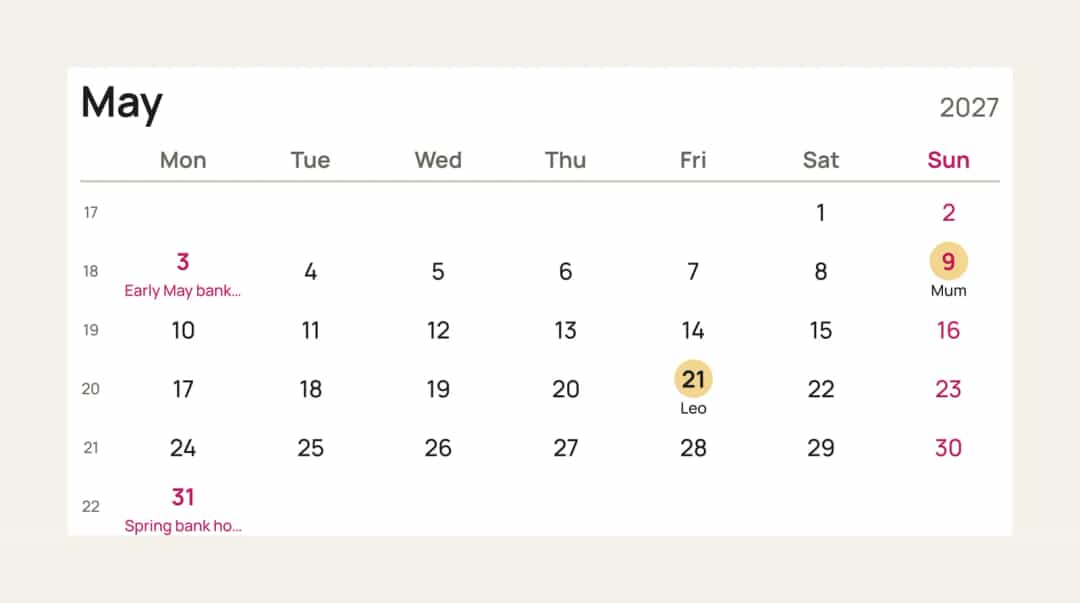
“Add our birthdays: Anna 3 March, Sam 9 May”
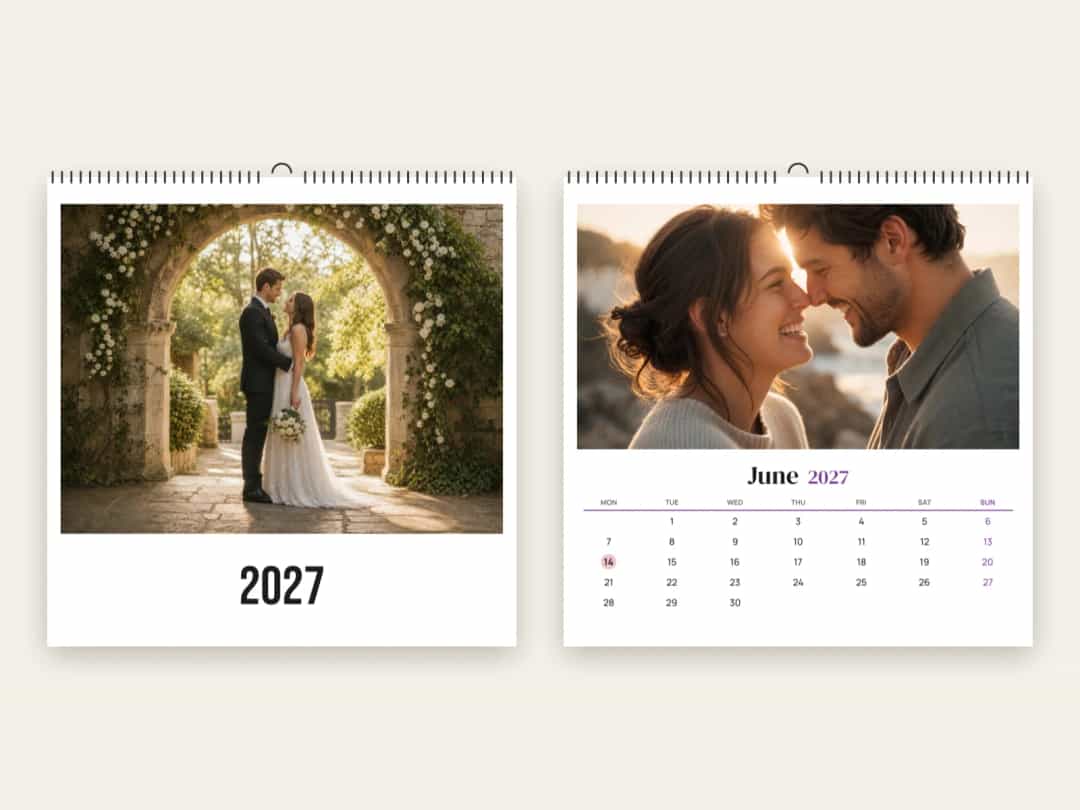
“Add our wedding anniversary on 14 June”
“Mark the Scottish holidays”
“Show week numbers”
The dates are added to the ones already there, and each one is printed on its day. You can have up to 60, with names of up to 24 characters. Short names are best, as longer ones get shortened on smaller calendars.
Holidays work by country and, in many places, by region. If you’re asking for a region, use its name in the local language if the English one doesn’t work, for example “Bayern” rather than “Bavaria”.
Step 4: Change the Design in Plain Words
Once the calendar has its photos and dates, you can try different designs just by asking. These all work:
What you want | What to say |
|---|---|
Bigger photos | “Make the month pages full-photo” |
A useful cover | “Use the year overview on the cover” |
A colour that matches | “Make the Sundays dark blue” |
A ready-made design | “Show me some looks for my calendar” |
A new layout for one month | “Show me other layouts for this month” |
More photos in a month | “Use 2 photos this month” or “Three photos in rows on March” |
A single caption | “Add a caption to this month” |
A different colour palette | “Try warmer background colours” |
A different mood | “Make my whole calendar black and white” |
If you don’t like a change, say “undo” or use the undo button.
What to Check Yourself
An AI can fill in a calendar quickly and still get something wrong, so this part stays with you.
It doesn’t see your photos
The Photo9 assistant works from your photos’ dates and sizes, not what’s in them. So it can’t tell that a picture shows your sister, or that one photo is better than another. If you ask for captions, give it the facts (“this is Mia’s first day at school”) or it can only offer generic wording.
Dates need a human eye
Compare each personal date with your own list, especially if you typed them quickly or copied them from another chat. Check the holidays are for the right country and region, because a calendar for someone in Scotland shouldn’t show the English list.
Crops and the hanger hole
Look through every month for cut-off heads, particularly after changing the format or page style. The editor marks the band at the top of each page where the hanger hole goes, so keep faces and words below it.
Empty months
A month without a photo prints with an empty space. If you uploaded fewer photos than you need, the result will have gaps.
A Sample Conversation
Here’s how a complete session might go, with the chat doing the repetitive work:
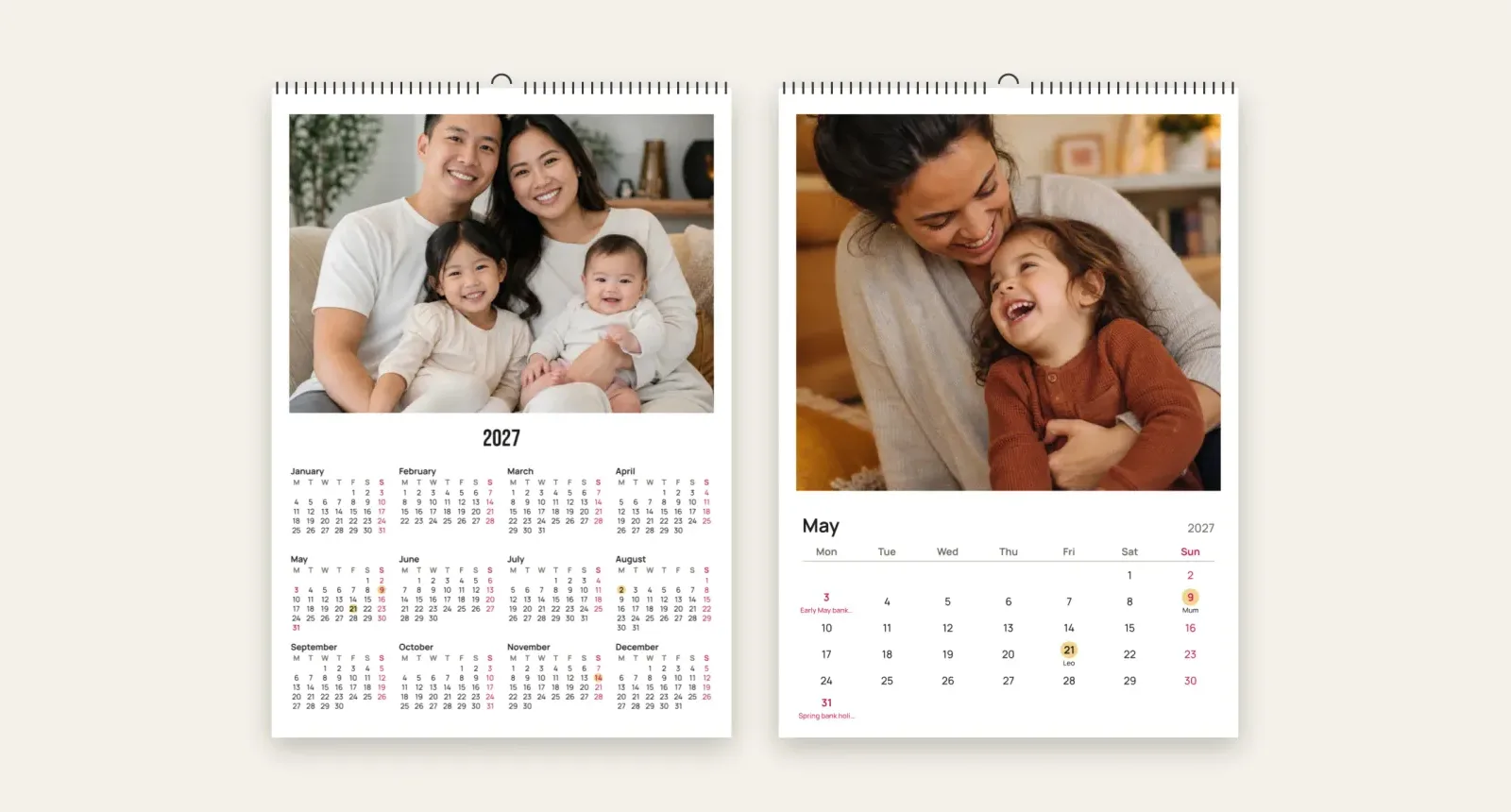
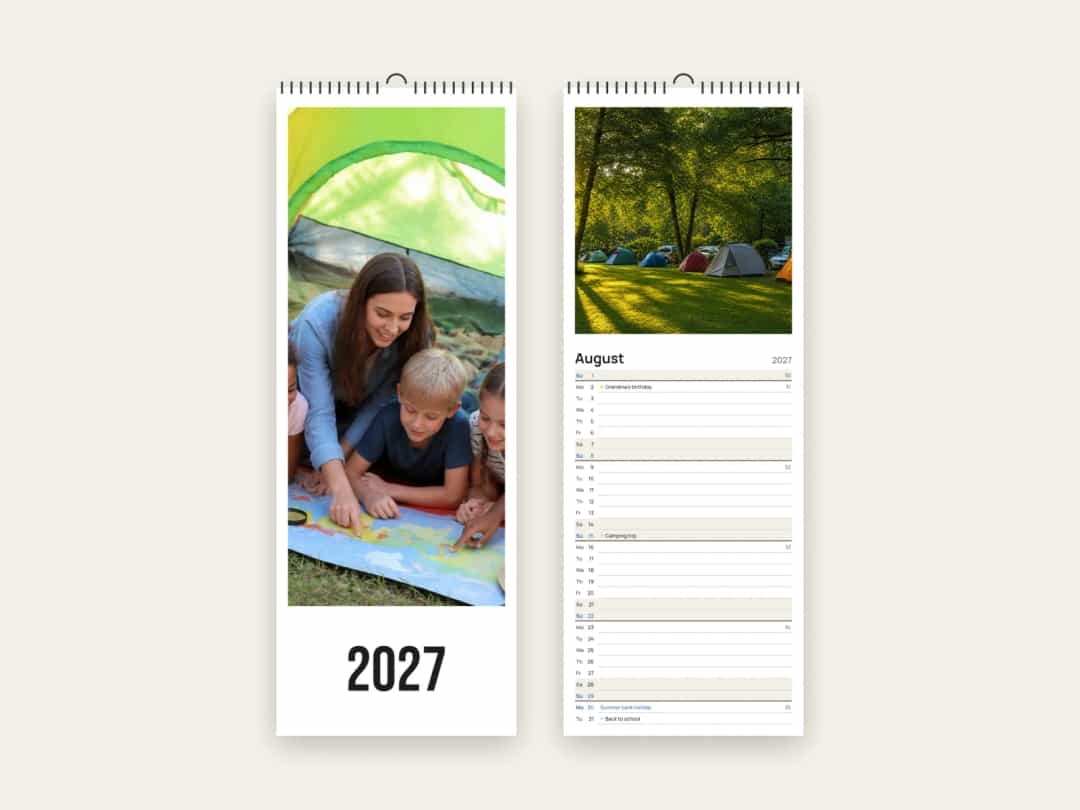
“Make me a slim family planner for 2027.”
Upload 13 photos from last year.
“Put the photos in the right months.”
“Add our birthdays: Anna 3 March, Sam 9 May, Leo 21 May, Mum 9 August.”
“Mark the Dutch holidays and show week numbers.”
“Make the Sundays dark blue.”
Look through each month in the preview, and fix anything that’s off.
“Add this calendar to my cart.”
Using ChatGPT to Prepare
Before you start, a general chat is useful for the thinking and writing:
A list of dates: paste in your notes and ask for a tidy list of names and dates. Then check it against your own records.
Ideas for each month: “Suggest a photo theme for each month for a family calendar for grandparents.”
Short captions: “Write five short captions about our trip to Italy, each under eight words.”
Then paste what you’ve decided into Photo9. The same approach works for bigger projects, and you can also make photo books with AI.
Printing and Delivery
Your calendar has a cover and twelve months, printed on one side and bound with a wire and a hook. The delivery estimate for your country is shown on the calendar page. For Christmas, order in November to be safe.
Make Your Calendar
Start with one sentence and a folder of photos. Let the AI do the placing and the dates, then check the result yourself. Create your photo calendar with Photo9 in your browser, with no app to install.
FAQ
Can ChatGPT make a photo calendar?
Yes, with Photo9 in ChatGPT. Ask for a calendar, add your photos in the card in the chat, and Photo9 makes it there. You can change the year, holidays, dates and style by asking, then order it in your browser, and it’s printed and delivered.
Is there an AI calendar maker that uses my own photos?
Yes. Photo9 places your photos on the cover and months, and you can change the dates, holidays and design by typing what you want.
Can AI add birthdays to my calendar?
Yes. Type a list such as “Add our birthdays: Anna 3 March, Sam 9 May” and they’re added to the calendar. Check them against your own list before ordering.
Can an AI photo calendar match photos to the right month?
Yes, if your photos still have their dates. Say “Put the photos in the right months” and the assistant uses the date taken. Photos without a date stay where they are, and you can move them by hand.
Do I need to install anything to make a calendar with my photos?
No. Everything works in your browser, on a phone or a computer.