How to Make Photo Mugs and Gifts With AI and ChatGPT
A personalised mug looks like an easy gift, until you try to fit a photo and a name around a handle. A water bottle has the opposite problem: a small panel on the front, where four photos turn into four thumbnails. AI takes care of most of that placing for you. What you bring is the photo, the words and the person it’s for.
This guide covers AI mug design in Photo9, for photo mugs, travel mugs and water bottles, in our chat or in ChatGPT.
Pick the Gift First
The shape decides how much room your design gets, so choose the gift before the photos.
Gift | Where the print goes | Best for |
|---|---|---|
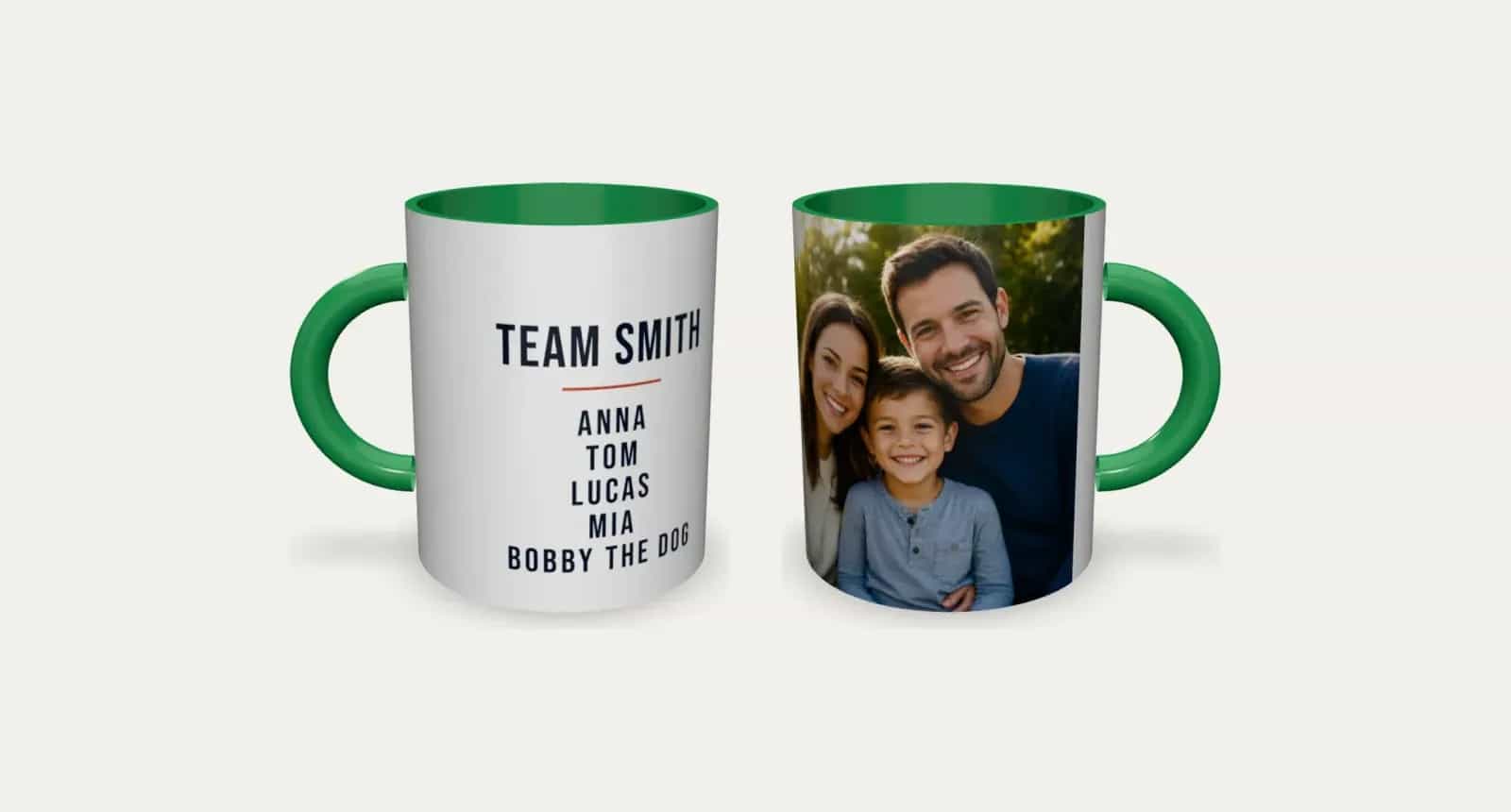
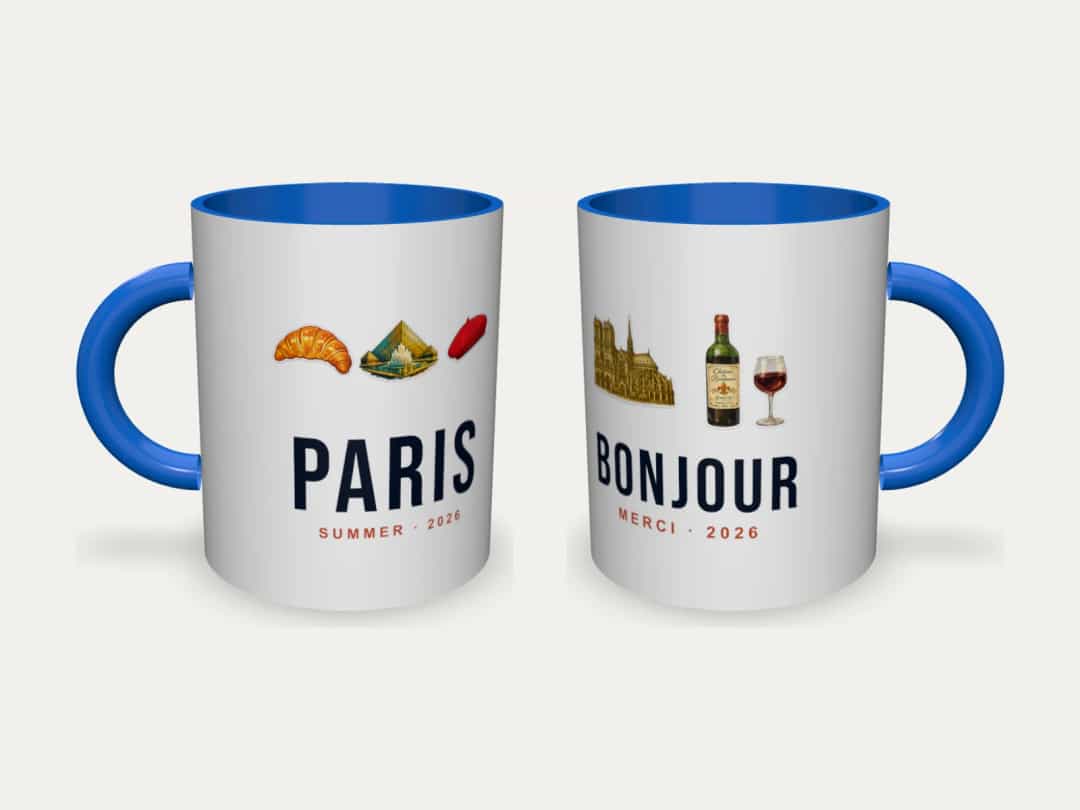
Photo mug | All the way round, up to the handle | Coffee at home, with a photo and words |
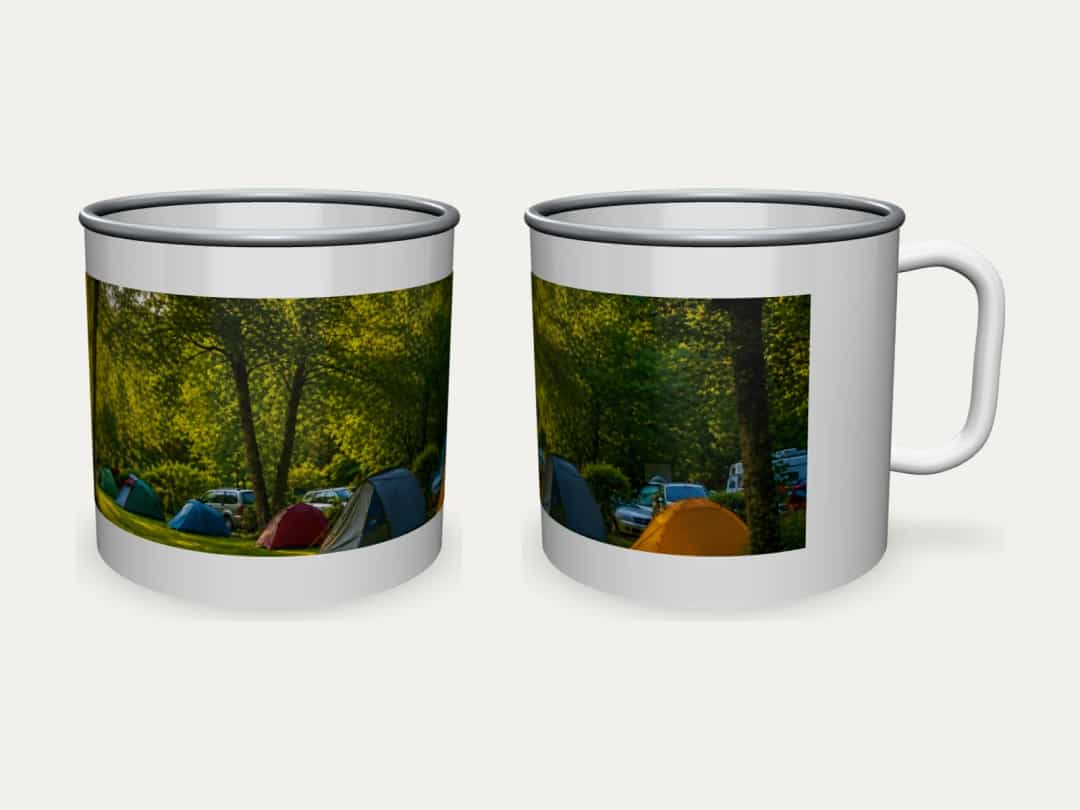
Enamel mug | A band around about two-thirds of the mug | Camping and a rustic look |
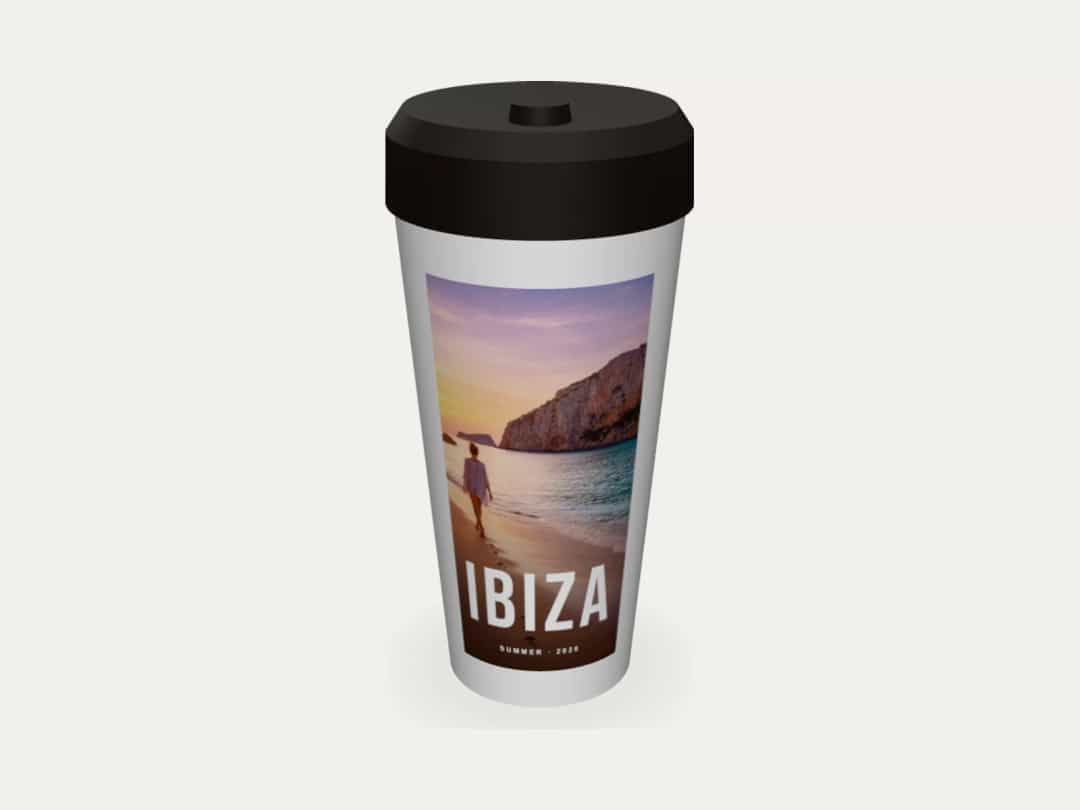
Travel mug | A front panel of about 8 × 12.5 cm, with a lid | The commute |
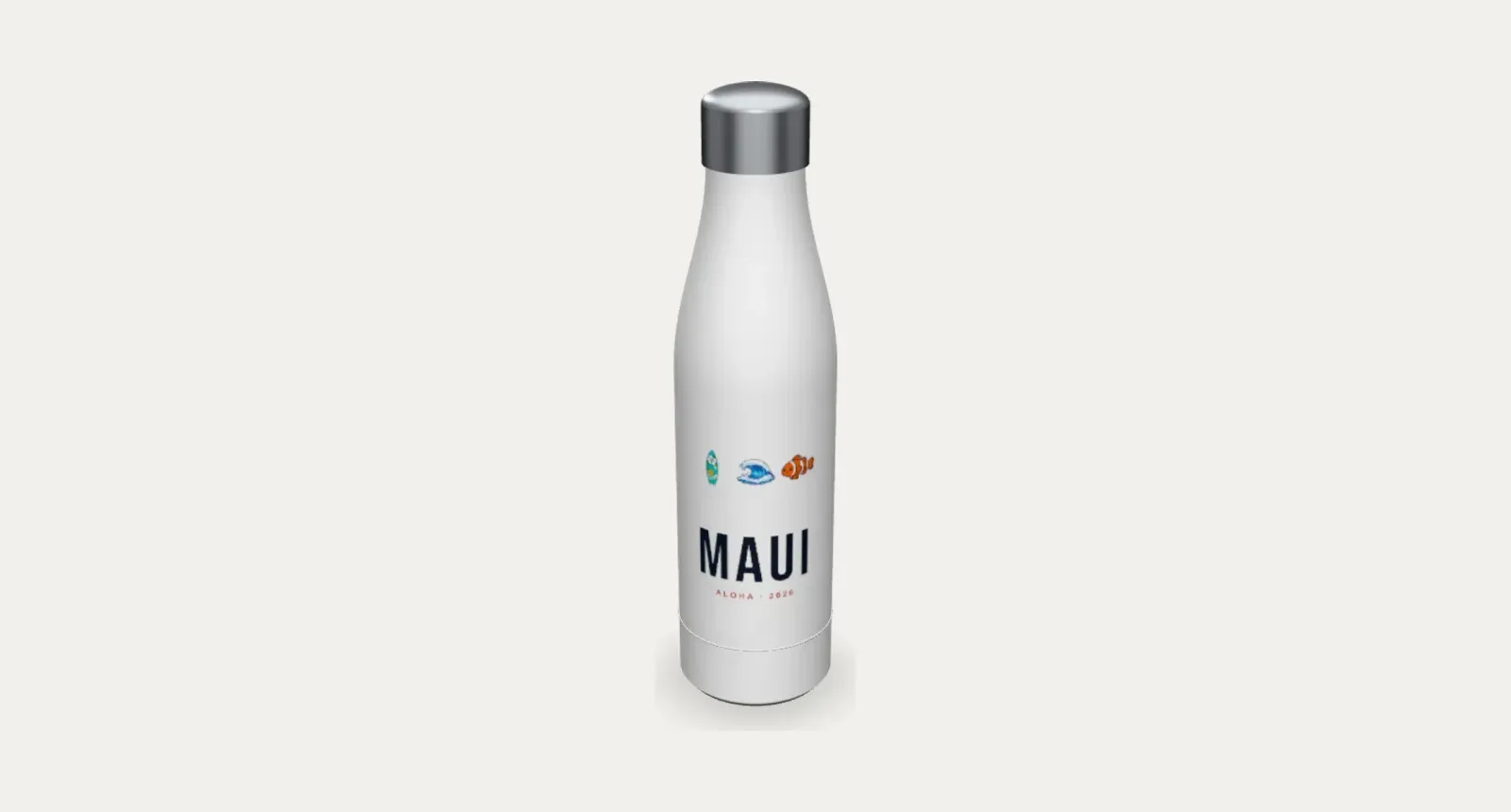
Water bottle | A front panel of about 8 × 10.5 cm | Sport, school and hiking |
If you’re not sure, ask the chat: “Which gift should I choose?”, “What is the difference between the mugs?” or “Which gift suits a hiker?”
Start in the Photo9 Chat
Open the chat on the site and say what you want, for example “Make a mug with a photo of my kids”. The chat looks up the prices for your country and creates the gift. Once your photos are in, the AI lays them out around the shape.
Or Start in ChatGPT
If you already use ChatGPT, you can make the gift there. Open Photo9 in ChatGPT and ask for a mug, travel mug or water bottle. A card opens in the chat, where you pick your photos from your device and press the button to create it. Photos you’ve already attached to the chat can’t be used, so add them through the card.
You can then ask for another colour, a different layout, or new words for the texts already on the design. You can also ask to see ready-made looks, such as “Show me birthday looks for my mug”. Photo9 shows your mug in each one, and the look you choose takes your photos and keeps any words you’ve written. When you’re happy, the card takes you to your browser, where you confirm with a six-digit code. Anything else you’d like to change, and the order itself, happen there. Read how Photo9 works in ChatGPT.
Step 1: Tell It the Occasion and the Person
You’ll get a better first design if you give the details together:
“Make a mug for my sister’s birthday, with one photo of us and ’Happy 30th, Lou’ on the other side.”
The details that help most are:
The gift: a mug, an enamel mug, a travel mug or a bottle
Who it’s for: this decides the words and the colours
Photos: one or two work best on a mug, and one on a bottle or travel mug
Words: a name, a date or a short line
Step 2: Shape the Design With Plain Requests
Once the design is there, change it by asking:
What you want | What to say |
|---|---|
More photos around the mug | “Use 4 photos around the mug” |
A name | “Add a name to my mug” |
Another arrangement | “Show me other layouts” |
A different background | “Try warmer background colours” |
A ready-made design | “Show me some looks for my mug” |
A colour that matches | “Make the inside and handle red” |
Each change keeps your photos, and “undo” takes you back a step. You can also change anything by hand in the editor.
Step 3: Check the Handle and the Panel
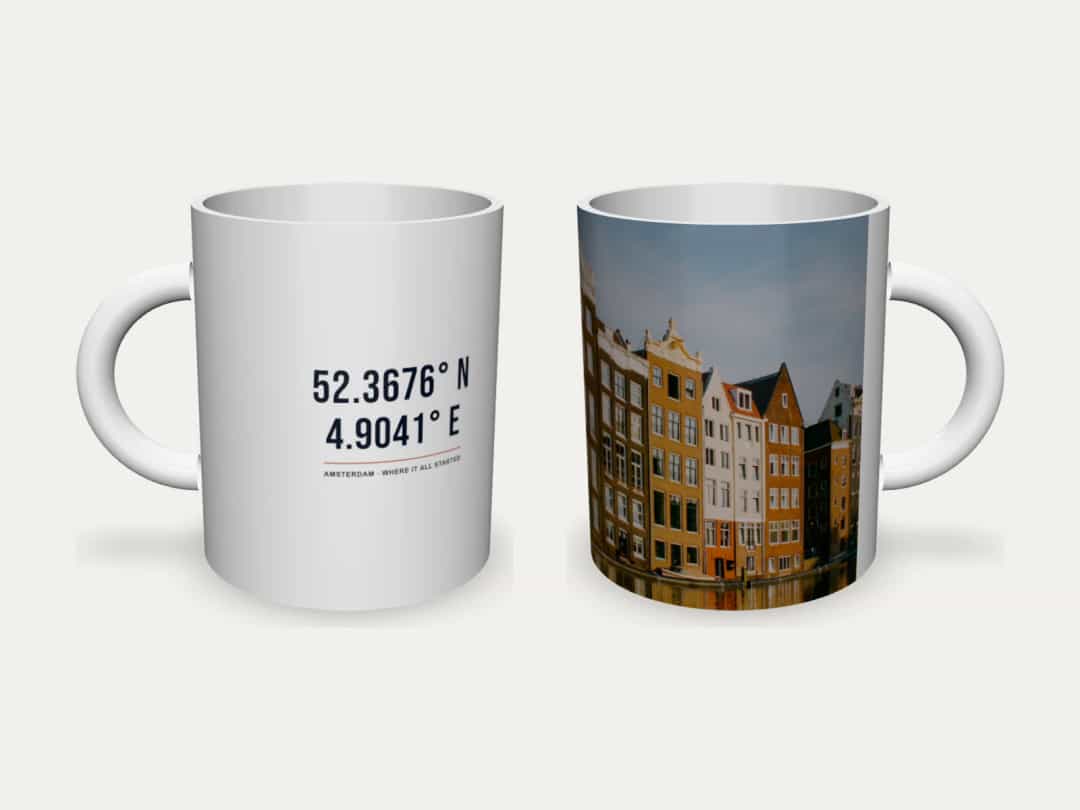
AI layouts know where the handle is, but it’s worth knowing why it matters. On a ceramic mug, the two ends of the print meet at the handle, so anything placed there gets split or hidden by a hand. The editor shades those ends and warns you if text sits too close to them.
On a travel mug or a bottle, the print is a small upright panel, so one photo with a name reads best. Turn the design in the 3D preview before you order. It’s the quickest way to see what someone holding the gift will see.
For product-specific tips, see our guide to personalised water bottles and travel mugs.
Step 4: Let AI Help With the Words, Not the Facts
A general chat is useful for ideas, as long as you give it the facts: “Five short lines for a mug for my dad, who gets up at 5 to go fishing. Four words at most.” Then choose one and check the names and dates yourself.
On a mug, three to six words in large letters can be read easily, while a long quote turns into grey texture. These prompts are good places to start:
Gift idea | A prompt to start with |
|---|---|
Couple | “One photo of us on one side, and our date on the other” |
Family | “Team Smith with each name on its own line, and a family photo” |
Place | “The coordinates of our first home in clean type, with a photo of the street” |
Hiker | “A water bottle with a mountain photo and their name” |
Commuter | “A travel mug with a holiday photo and the name of the place” |
What to Check Yourself
Names: read each one letter by letter. A misspelt name on a gift is hard to live with.
The handle: make sure no warning remains about text close to it.
Faces: turn the design in 3D and check that nobody sits at the join.
Care: the ceramic mug is dishwasher and microwave safe. The enamel mug, travel mug and bottle are metal, so they’re washed by hand and never go in the microwave.
The delivery time and cost for your country are shown before you pay.
Make Yours
Making personalised gifts with AI works best when you start with one good photo and one sentence about who it’s for. The AI does the placing, and you check the words. Design your photo mug with Photo9, or make a water bottle, travel mug or enamel mug, in your browser with no app to install. For more present ideas, see these personalised Christmas photo gifts and this Father’s Day gift guide.
FAQ
Can ChatGPT design a mug?
Yes, with Photo9 in ChatGPT. Ask for a mug, travel mug or water bottle, add your photos in the card in the chat, and Photo9 makes the design. You can change the colour and layout by asking, then order in your browser, and it’s printed and delivered. On its own, ChatGPT can suggest ideas and wording, but it can’t print them.
How do I design a mug with AI using my own photos?
Upload your photos to Photo9 and say what you want, such as “Add a name to my mug”. The AI lays the design out around the handle, and you can change anything in the editor. Check the 3D preview before you order.
How many photos fit on a mug?
Up to 8 on the ceramic mug, but one photo with short text, or 2 to 4 photos, usually look best. A travel mug or water bottle takes up to four, and one photo with a name reads best.
Are personalised gifts made with AI dishwasher safe?
The ceramic mug is safe in the dishwasher and the microwave. The enamel mug, travel mug and water bottle are metal, so wash them by hand and keep them out of the microwave.
Do I need design skills to make a photo mug?
No. Describe what you want, and the AI does the layout. You only need to choose the photo and check the words.